Set up your first MCP server
The setup page takes one MCP server from its address to a verified, governed tool call in six steps. A new workspace opens on it after sign-up; you can return to it any time at /activate in your workspace, or from Activate your first MCP server in an empty catalog. Every step saves as you go, so you can leave and come back to the same place.
Before you start
Section titled “Before you start”- A workspace account that can register servers and publish policy, such as a workspace owner.
- The address of the MCP server you want to govern, for example
https://mcp.example.com/mcp. - If the server needs a sign-in, an account with its provider. For a server that uses an API key or bearer token, have the key ready.
1. Connect the server
Section titled “1. Connect the server”Paste the server’s address and select Connect. The gateway reaches out, detects the transport and protocol, and lists the server’s tools.
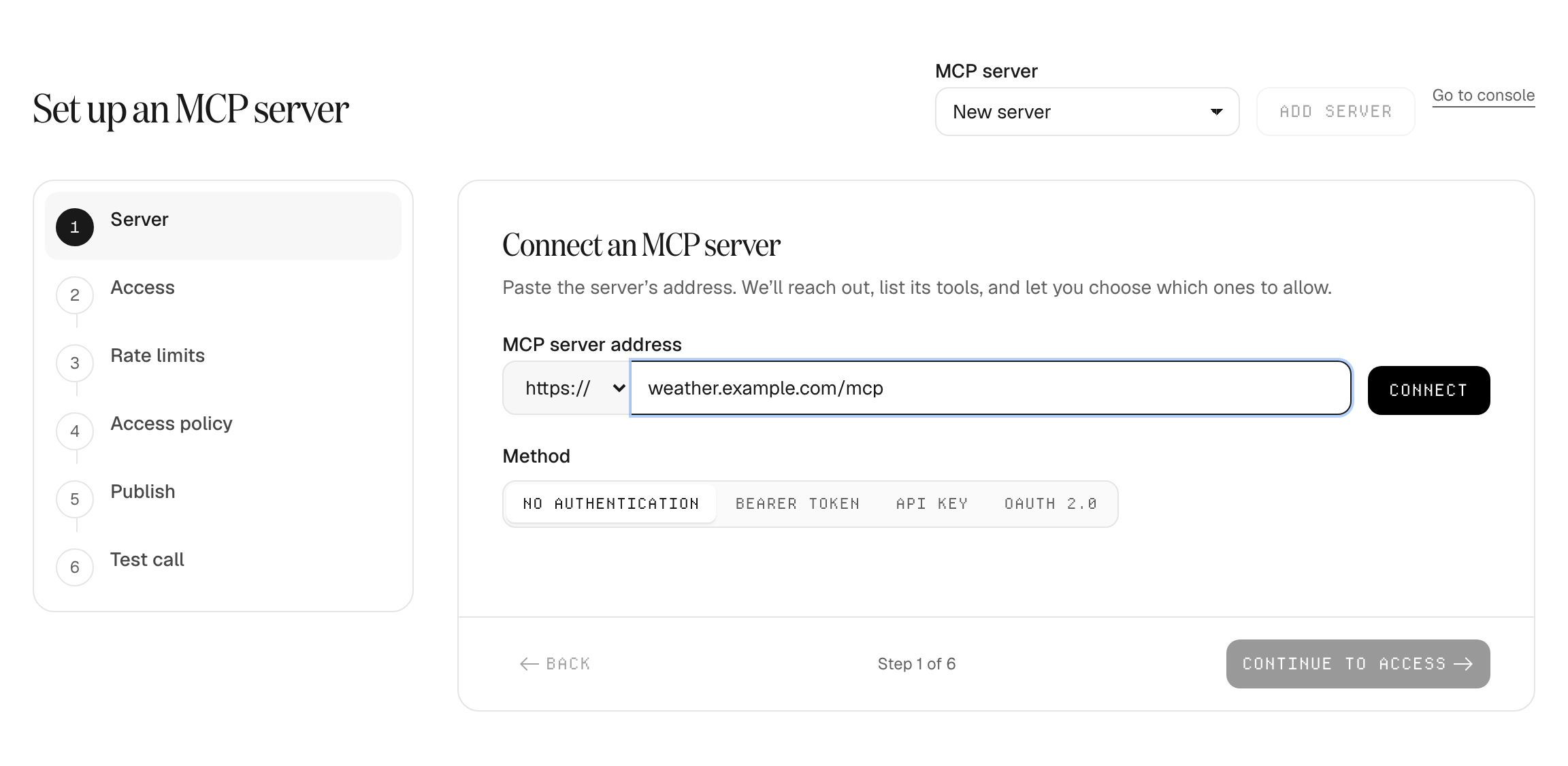
If the server needs authentication, choose the method it uses:
- OAuth 2.0: the gateway discovers the provider. When it offers automatic registration, the gateway registers an application for you; otherwise enter the OAuth client ID the provider gave you. Select Sign in, finish the provider’s sign-in, and setup returns on its own, listing the tools. An application you configured earlier for the same server is offered again instead of asking for the client ID.
- Bearer token or API key: paste the value. It is sealed in the gateway’s secret store and never shown again.
Next, choose which tools clients may call. Tools that read are allowed by default; tools that write or delete start denied and carry a High or Critical risk badge. Use search, the All / Allowed / Denied filter, and Allow all or Deny all to decide quickly. Denied tools stay hidden from clients.
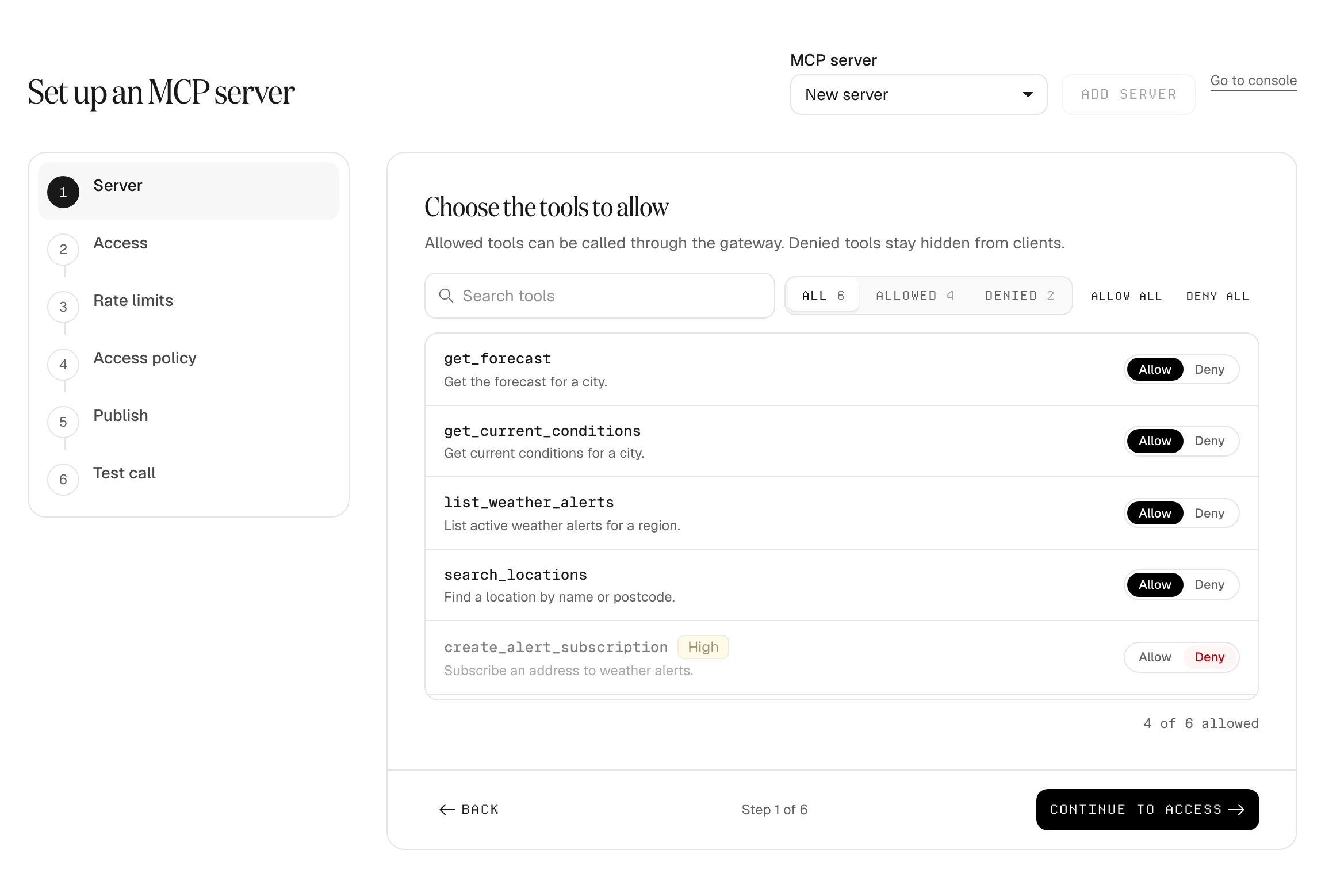
Select Continue to Access to register the server. If the address is already registered, setup says so and opens that server instead of adding a second copy.
2. Choose who will use the server
Section titled “2. Choose who will use the server”Access decides who can connect a client to this server.
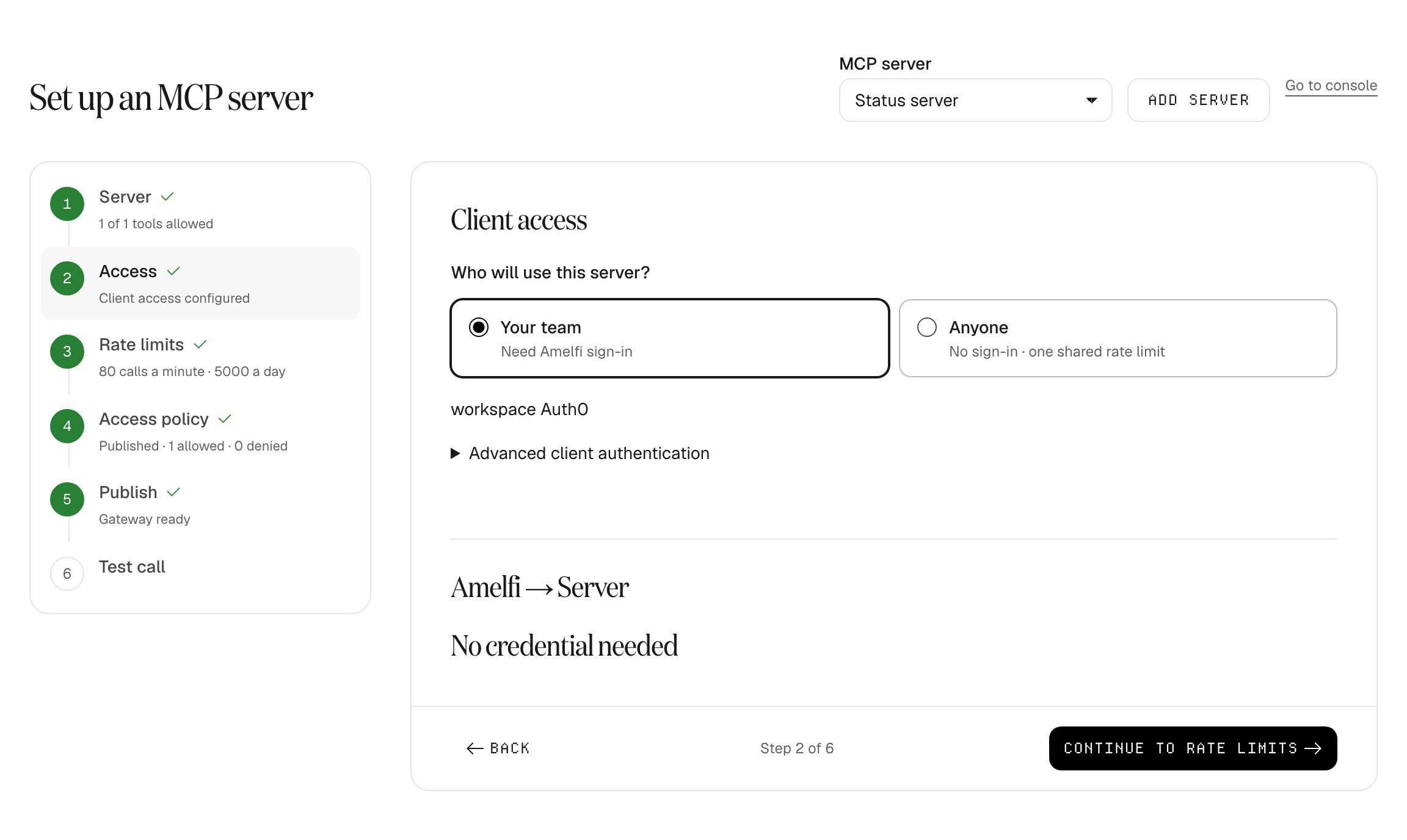
| Option | Who can connect | When to choose it |
|---|---|---|
| Your team | Members of your workspace, who sign in with their Amelfi account | Internal tools. This is the default. |
| Your users | Anyone with an account at the server’s own sign-in provider | Shown only when the server signs in each person. Choose it for a service whose provider is your own identity system, so your customers connect with their existing accounts. For providers such as GitHub or Google this admits anyone with an account there. |
| Anyone | Any caller, without sign-in | Public, read-only servers. Callers are anonymous and share one rate limit. Unavailable when the server signs in each person. |
Amelfi → Server below the options shows how the gateway itself authenticates to the server: none, a stored credential, or each person’s own sign-in.
3. Set rate limits
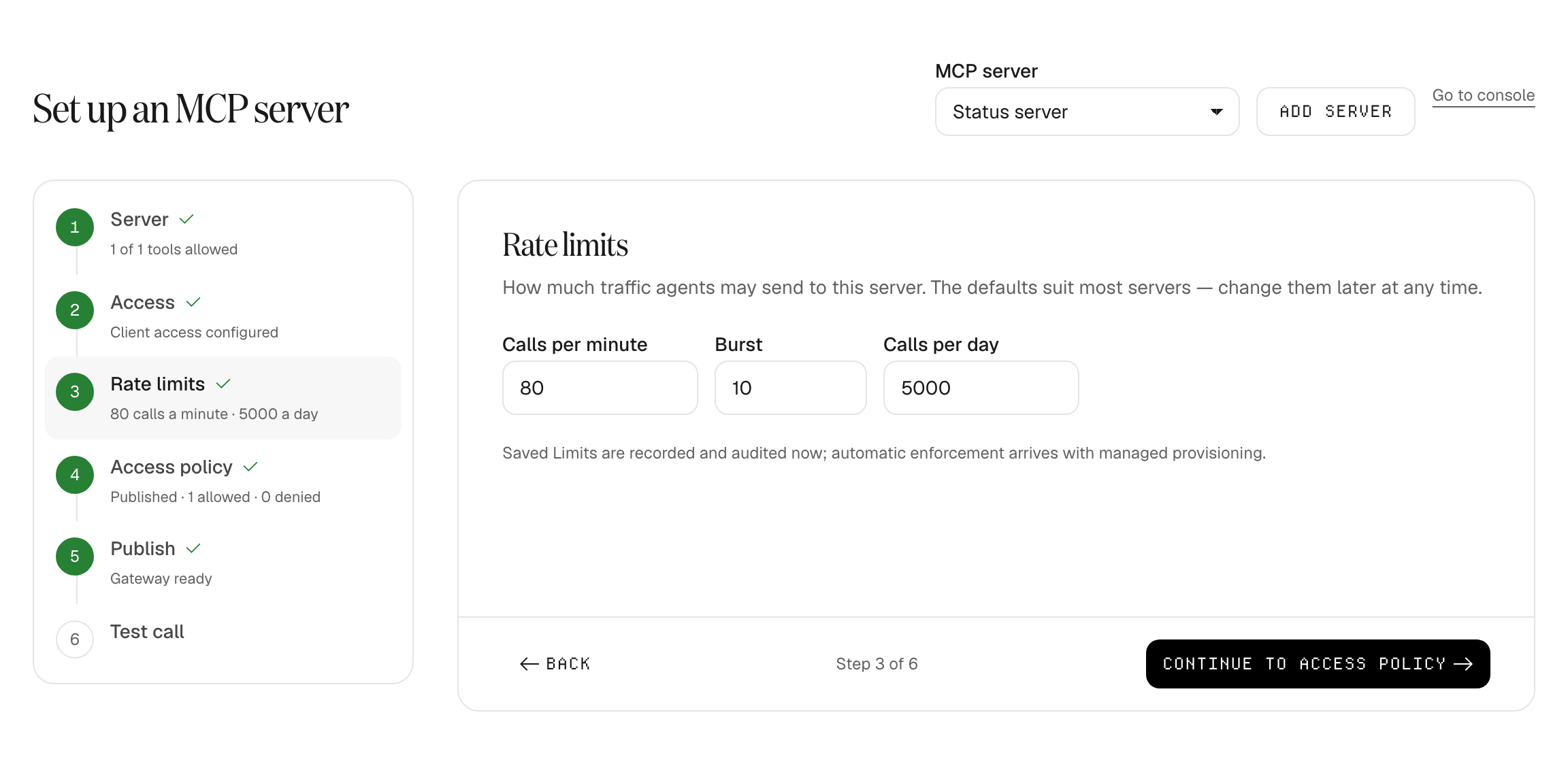
Section titled “3. Set rate limits”Limit how many calls agents can send: calls per minute, a burst allowance, and calls per day. The defaults suit most servers, and you can change them later from the server’s page.
4. Review the access policy
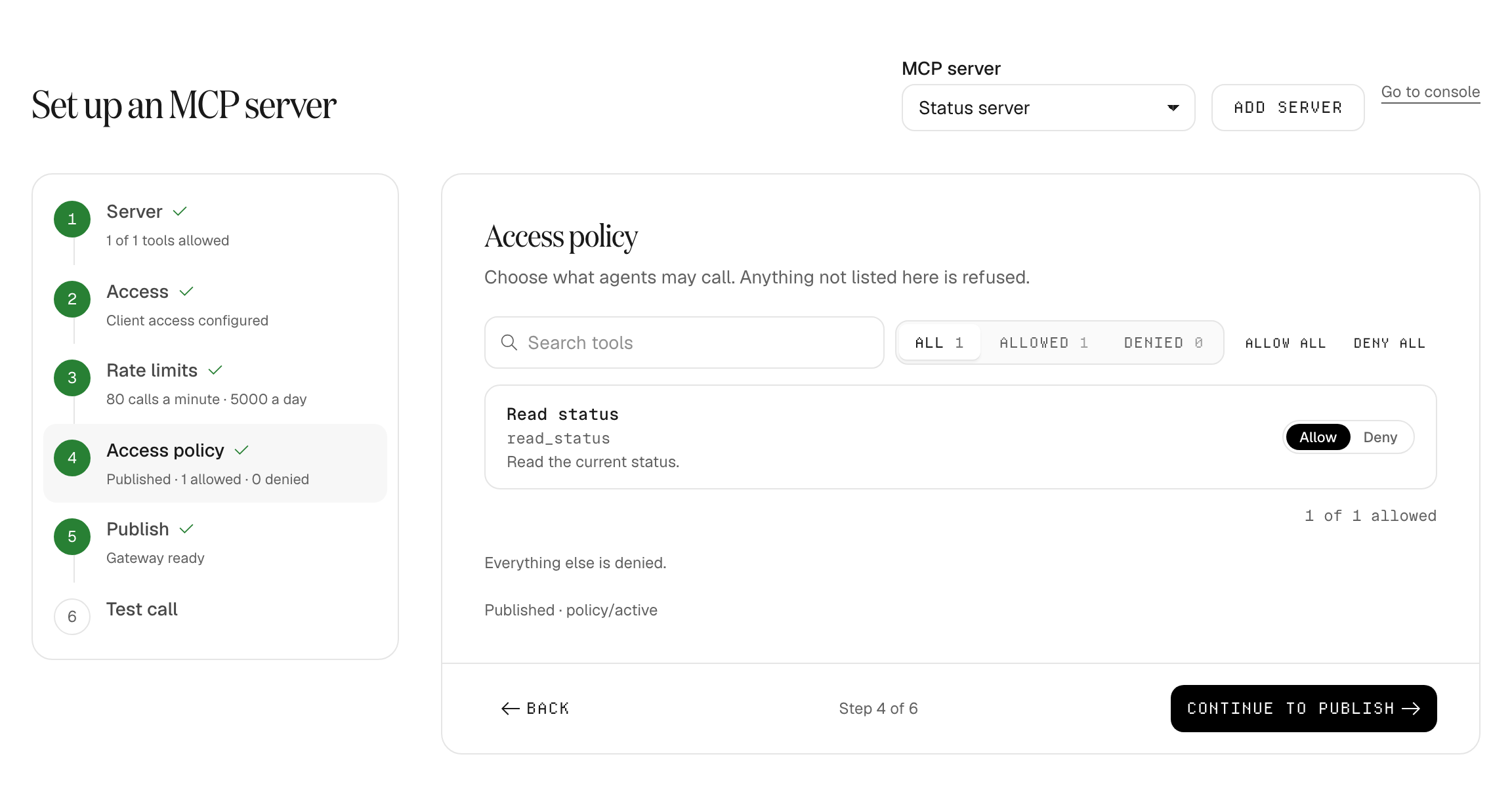
Section titled “4. Review the access policy”The access policy is the Cedar policy the gateway enforces on every call. It starts from the tools you allowed in step 1. Change a tool to Deny here to block it at runtime; anything not listed is refused. Changes save automatically and take effect when you publish.
5. Publish
Section titled “5. Publish”Select Publish server. The gateway publishes the server, the policy and client access together, and waits until the runtime serving your workspace has loaded them. A server that signs each person in reuses the sign-in from step 1, so you are not asked again.
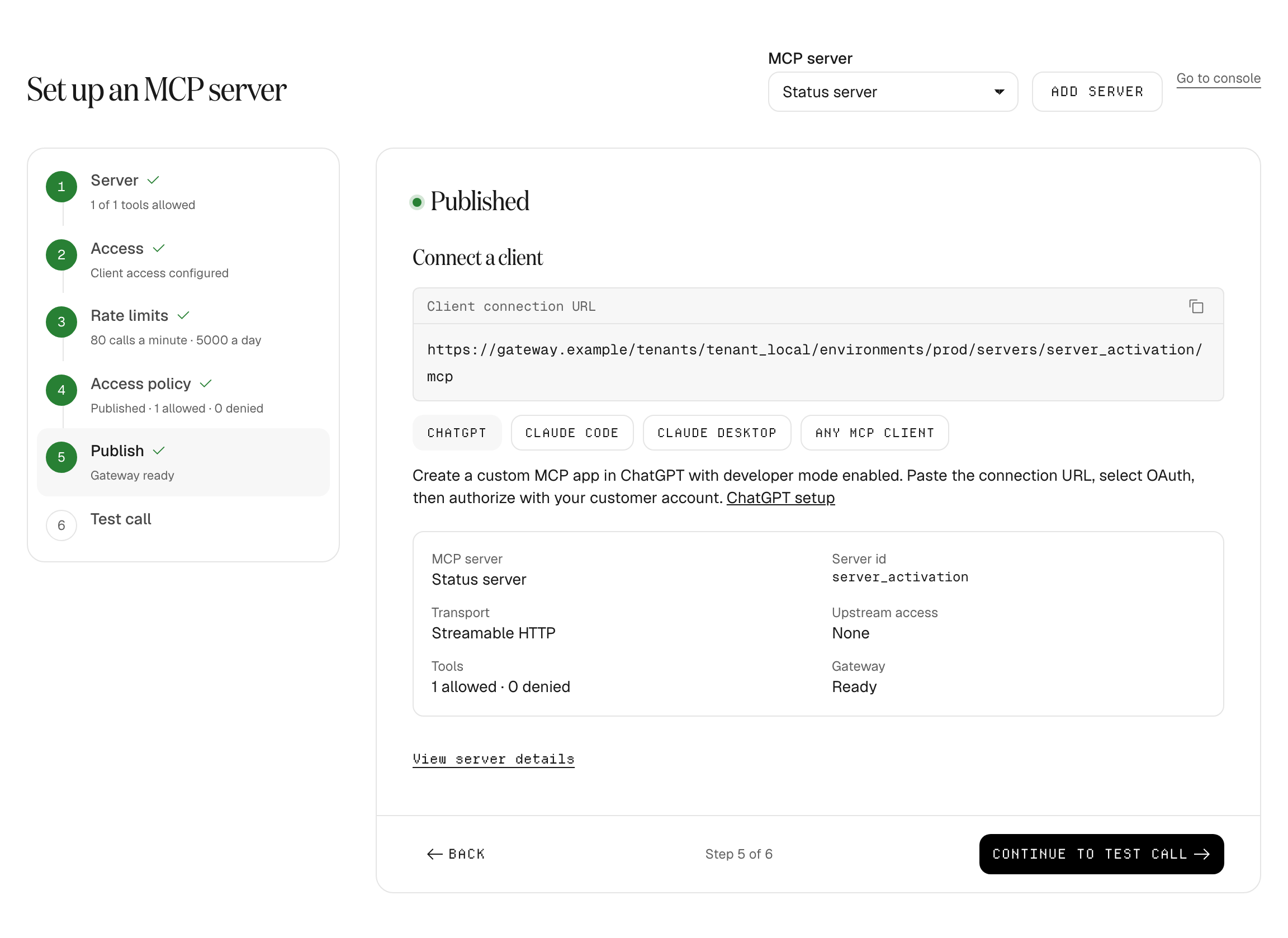
Connect a client gives the gateway URL for this server and instructions for ChatGPT, Claude Code, Claude Desktop, or any MCP client. Always connect clients to this gateway URL, never to the server’s own address: calls that bypass the gateway skip policy, rate limits, and audit.
6. Send a test call
Section titled “6. Send a test call”Pick an allowed tool, fill in its inputs, and send a test call. The gateway runs a real governed call and shows each stage it passed through: identity, access policy, credential, route, rate limits, and the server’s response. Setup is complete when the call is verified from its audit record.
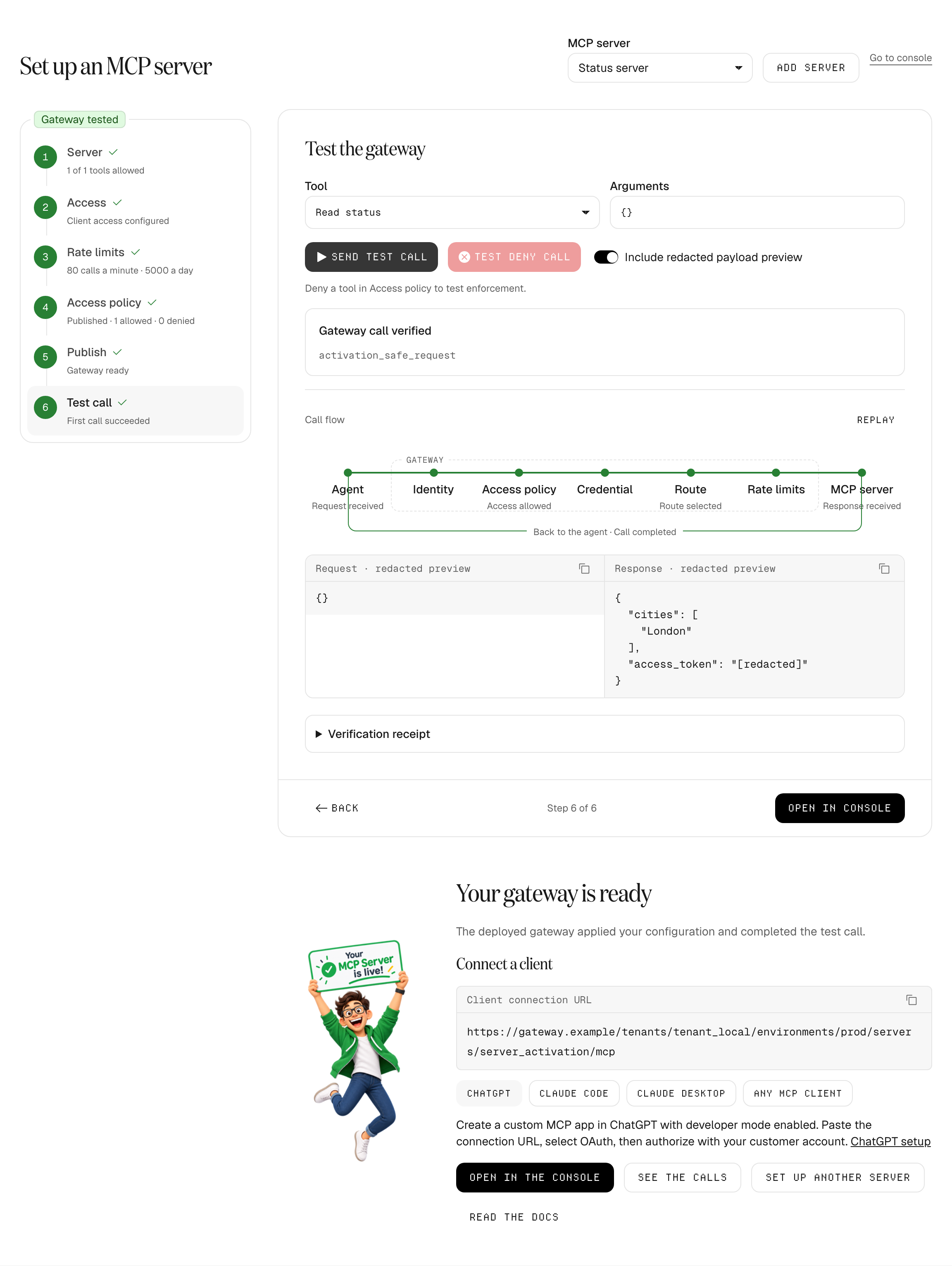
For a server that signs each person in, the test runs with your own upstream account. Setup turns on payload capture for an hour so that you can see the response; captured payloads follow your workspace’s retention settings.
To prove enforcement as well, deny a tool in step 4, publish, and use Test deny call. The gateway refuses it before reaching the server.
If something goes wrong
Section titled “If something goes wrong”- The server can’t be reached or the probe fails. Check the address, including the path (often
/mcp). Hosted workspaces call only public addresses, so local and private addresses are refused. - The provider’s sign-in shows an error. The error comes from the provider. Check that its application allows the redirect URI shown in step 1, then sign in again.
- Publish waits for the runtime. A new workspace can take a few minutes to start its runtime. Setup keeps checking; use Check runtime status to check now.
- A call is refused. Check the tool is allowed in step 4 and that the caller is in the audience chosen in step 2. Every decision is recorded; see Search audit.
Next steps
Section titled “Next steps”- Your first governed call: call the server from your own MCP client.
- Connect an OAuth-protected MCP server: how clients sign in to a server that requires it.
- Publish a policy: write rules beyond allow and deny.
- Register an MCP server: the full registration wizard, with ownership and review options.
Implementation reference
Section titled “Implementation reference”Amelfi documentation · Space Grotesk / Geist Mono